Grid View
Grid view is the default view in Heaper. It displays blocks as a visual grid of thumbnails and cards — ideal for browsing images, files, and media collections.
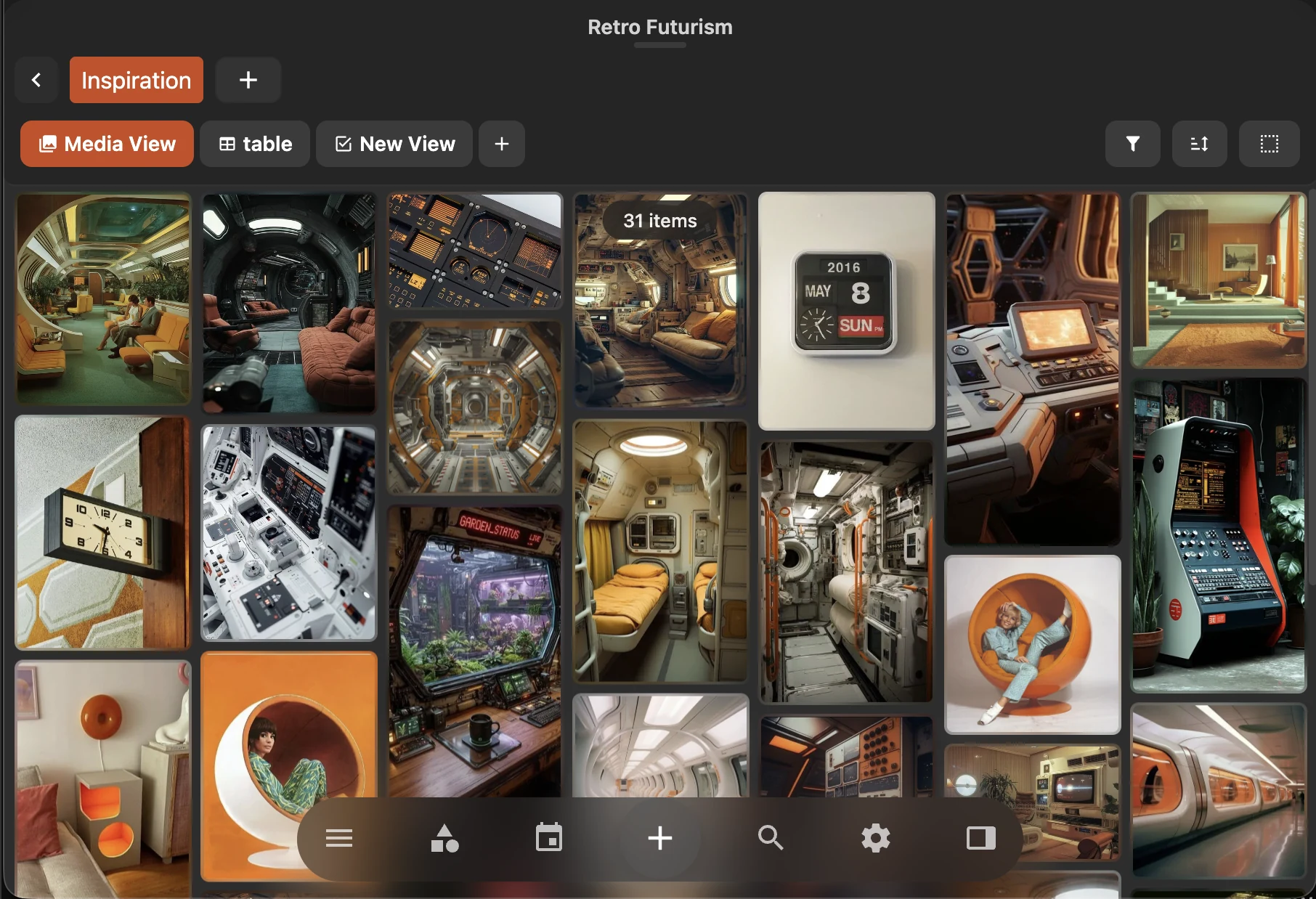
Layout
Blocks are displayed as cards in a responsive grid. Each card shows A file preview if that is available. If not, we show the text rendered with the title and the content.
Navigation
- Scroll — Infinite scroll loads more blocks as you scroll down
- Arrow keys — Navigate between blocks with the keyboard
- Click — Navigate to the block
- Enter — Open the block or enter quick preview
Selection
Grid view supports rich multi-selection:
| Action | Result |
|---|---|
| Click | Select single block |
| Ctrl/Cmd + Click | Add/remove block from selection |
| Shift + Click | Select range of blocks, or enter selection mode |
| Long press (touch) | the options menu for the selection |
| C | toggle the selected state of the highlighted block |
| Space | open the quick preview overlay |
| Escape | close the quick preview overlay, cancel selection mode, unhighlight the highlighted block, navigate back |
| T | open the tag menu for the highlighted block |
| Shift+T | tag all selected blocks |
| swipe horizontally | select a range of blocks, and start a selection mode |
Edge Scrolling
When dragging a selection near the edges of the viewport, the grid automatically scrolls to let you select blocks beyond the visible area.
Quick Preview
Click a block or press Space to open Quick View for fullscreen preview with gallery navigation.
Tagging in Grid
- Select one or more blocks, then press
Tto open the tag menu - Use the radial drag menu by long-pressing a block
- Multi-select blocks and use
Shift+Tto tag them all at once